Reference page
Find the records yourself
You don’t have to take our word for it.
Follow a claim to its record, save the original and note what it actually shows.
- Question
- Agenda
- Attachment
- Original document
- Source note
Find your first record.
- Question
- Which high-school books were listed for purchase or donation?
- Where we’re looking
- New Braunfels ISD board meeting
September 14, 2026
Follow this example, then try your own district. The screenshots show BoardBook in Safari on a Mac. Look for the same link names if your screen differs.
STEP 1
Open the meeting agenda.
On your district’s website, look for School Board, then Meetings or Agendas.
In the meeting list below, find September 14, 2026. Choose Agenda in that row’s Details column.
Open the meeting list ↗- You click
- Agenda
- You should see
- A list of the items scheduled for that meeting.
The meeting has moved down the list?
Newer meetings may appear above it. Search the page for September 14, 2026 with Command + F on a Mac or Ctrl + F on Windows.
STEP 2
Look beneath the agenda item.
Scroll to 8.C., “Consider Approval of the September 2026 List of New Library Materials for Purchase and Book Donations.”
Under Attachments, choose the link ending in September 2026 Book List (High School).
- You click
- September 2026 Book List (High School)
- You should see
- The book list inside a document viewer.
Find the item without scrolling
Press Command + F on a Mac or Ctrl + F on Windows. Type 8.C. and press Escape to close the search box.
STEP 3
Save the document.
Find the menu at the upper left of the document viewer. Open it, then choose Download.
If your browser asks whether this website may download a file, choose Allow to save this document. If it asks where to save it, choose Downloads.
- You click
- Download, in the document viewer’s menu
- You should see
- The PDF in your Downloads folder, or the folder you chose.
Public websites change and links move. Saving the original lets you check later what was available when you found it.
My viewer looks different
Look for a downward arrow, Download, or Save. The document’s controls may be separate from the browser’s controls.
QUICK CHECK
Make sure it saved.
Open the PDF once. It should say September 2026 Book List (High School) and contain 49 pages.
Find and rename your saved copy
On a Mac, open Finder → Downloads. On Windows, open File Explorer → Downloads. If you chose another folder, look there.
After checking the file, give it a name you’ll recognize, such as 2026-09-14-high-school-book-list.pdf. That date is the meeting date.
Example filename after renaming
Keep one note beside your file.
Write down what the record shows and what you still need to check. Finding an attachment alone does not prove a later decision.
Copy this example into your notes and add the date you saved the file.
- What I found
- A high-school book list attached to item 8.C of the September 14, 2026 agenda.
- What it shows
- The district attached this list to an agenda item about library materials for purchase and book donations.
- What it does not show
- The attachment alone does not tell us whether the board approved the list or whether the books were purchased.
- Still to check
- What action did the board take? Look for the meeting minutes or recording, then any later records needed to follow what happened.
- Source
- New Braunfels ISD · September 14, 2026 · Item 8.C.
Meeting agenda · Original PDF - Saved file
- 2026-09-14-high-school-book-list.pdf
- Date I saved it
- [Add the date you saved your copy.]
The record I need isn’t posted
Write down the specific record you’re missing and the meeting or topic it relates to. Look on the district website for Public records or Records requests.
For example: “I’m looking for the completed review documents for [book title] discussed at the [date] board meeting.” Keep a copy of your request and the response.
Want the nerdier version?
Optional · Terminal on a Mac
You do not need Terminal to verify the record. The optional steps below let you download the same file directly.
Terminal is an app where you give your computer written instructions. The command below saves the same PDF into Downloads.
The screens below are illustrations based on our Terminal Basics walkthrough. Names, colors, and download numbers vary. The command box contains the complete instruction to copy.
1 · OPEN
Find Terminal.
Press Command + Space. Type Terminal, then press Return.
Application
2 · GET ORIENTED
Find where the command goes.
The line ending with % is called the prompt. The cursor after it is where your next command appears.
Your name and the text before the cursor will be different. You don’t need to copy that part.
reader@Mac ~ % ▌
↑ Your command will appear here.
3 · PREPARE THE COMMAND
Use the example PDF—or paste your own PDF link.
The example link is filled in below. For a different document, use its direct PDF link. A meeting page or viewer link may save a webpage instead.
This command saves to Downloads as board-report.pdf. If that name is taken, curl adds a number.
Press Command + C to copy the selected command.
4 · PASTE AND RUN
Paste, then press Return.
Click in the Terminal window. Press Command + V to paste your command. It may wrap onto several lines; that’s still one instruction.
Press Return to run it. You may see download numbers below the command.
reader@Mac ~ % curl --fail --location --globoff --no-clobber --output "$HOME/Downloads/board-report.pdf" --url 'https://meetings.boardbook.org/Documents/DownloadPDF/14352108?org=1512'▌
5 · CHECK THE RESULT
Find the PDF in Downloads.
When the prompt returns, the command has stopped. Check for an error message, then open Finder → Downloads.
Open board-report.pdf (or the numbered copy). Check the title and contents, then rename it and keep your source note.
% Total % Received Time
100 100 …
reader@Mac ~ % ▌
↑ The prompt has returned.
Something looks different or the file didn’t open
- “Could not resolve host”
- Check your internet connection and the link.
- “403” or “404”
- The site refused the download or the file wasn’t found. Open the source page in your browser and use its download button.
- “Unknown option” for --no-clobber
- Your version of curl is older. Use the browser download steps above.
- The saved file contains a webpage
- The link pointed to the viewer or another page. Return to the document’s download button.
The download command uses curl, a tool included with current versions of macOS.
Keep following the question.
One document may point to another. An agenda may lead to an attachment. An attachment may mention a policy. Following that policy may lead to minutes, emails, or another meeting.
Keep following the question. Keep the original records.
Next example: follow a book passage to a recording →See the book-and-video research walkthrough
Start with one question.
Keep it small enough to answer. For the Harmer example, our question was: Which book passages appear in Brooke Stephens’s notes, and how does she discuss them in her webinar?
Follow the original link.
Follow the claim’s links to the cited document. Save both addresses, your access date and a copy of the page or text.
Try it with this example
On the RatedBooks Rating Scale page, the phrase “first introduced in 1968” linked to notes on Harmer’s book. The notes give page numbers we can follow.
Read the passage in context.
Find the title and edition of the book. Turn to the cited page and read the surrounding paragraphs. If a sentence begins on the previous page, include that page. Record the printed page number; a viewer’s image number may be different.
Try pages 34–35
Open A War We Must Win on Internet Archive, or use our saved image of pages 34–35. The paragraph continues across both pages.
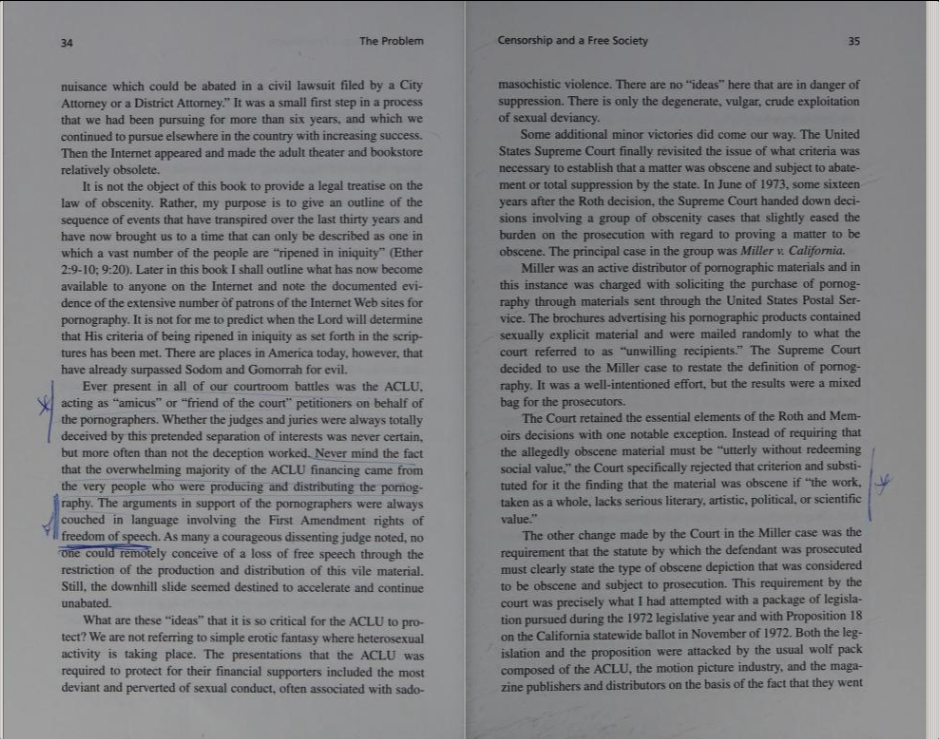
Save an uncropped copy before making a highlighted version. Say where existing marks came from: the underlining in our example appears in the Internet Archive copy.
Find the moment in the recording.
Search captions for a title or distinctive phrase to find the passage. Then watch and listen, including the introduction and enough afterward for context. Check quoted words against the recording.
Try 21:01–22:48
Open the Protect Ohio Children webinar at 21:01. Stephens introduces the book, discusses its arguments, and explains how viewers can use her notes. At 22:27, she talks about copying and sharing quotations.
Automatic captions can help you find a passage. Listen before using their wording as a quotation.
Put a date beside each record.
Label each date: publication, file creation or change, upload, or the event itself. Note separately when you saved the source. Keep the time zone with file timestamps.
Use clear date labels
“Webinar uploaded April 5, 2024” identifies the date we have. To date the speaking event itself, look for an event listing, invitation, or a date stated in the recording.
A simple note to start with
Copy these prompts into a document and fill them in as you go.
- My question
- What am I trying to establish?
- What I found
- What does the source show, and who says it?
- Source
- Title, author or speaker, and link.
- Where to look
- Printed page number or video timestamp, with surrounding context.
- Dates
- What each date represents, plus when I saved the source.
- Saved copy
- Where I kept the original page, document, or recording.
- Still to check
- What remains unanswered?